Install a Custom SSL Certificate on Your Website
Estimated reading: 2 minutes
Let’s Encrypt Certificates
Our control Panel automatically requests a Let’s Encrypt certificate for websites. An SSL (TLS) certificate from a third party can be installed at any point.
Warning
3 days before the expiry of a third-party certificate, Enhance will automatically request a Let’s Encrypt certificate.
Upload a Custom Certificate
You can configure your own paid or self signed certificate.
Paid SSL certificates are offered by commercial Certificate Authorities like DigiCert, Sectigo, and GlobalSign. They come in various levels: Domain Validation (DV), Organization Validation (OV), and Extended Validation (EV). Recommended for business, enterprise, or sites handling sensitive data (e.g., payment gateways, customer portals)
Installing a Custom Certificate is pretty straightforward
Open Websites in the left sidebar
Select the website you would like to request a certificate for
On the website dashboard select then
Scroll to SSL certificates
Here you will see all existing SSL certificates for the domains on the website. Select the kebab menu and select Request Let’s Encrypt Certificate
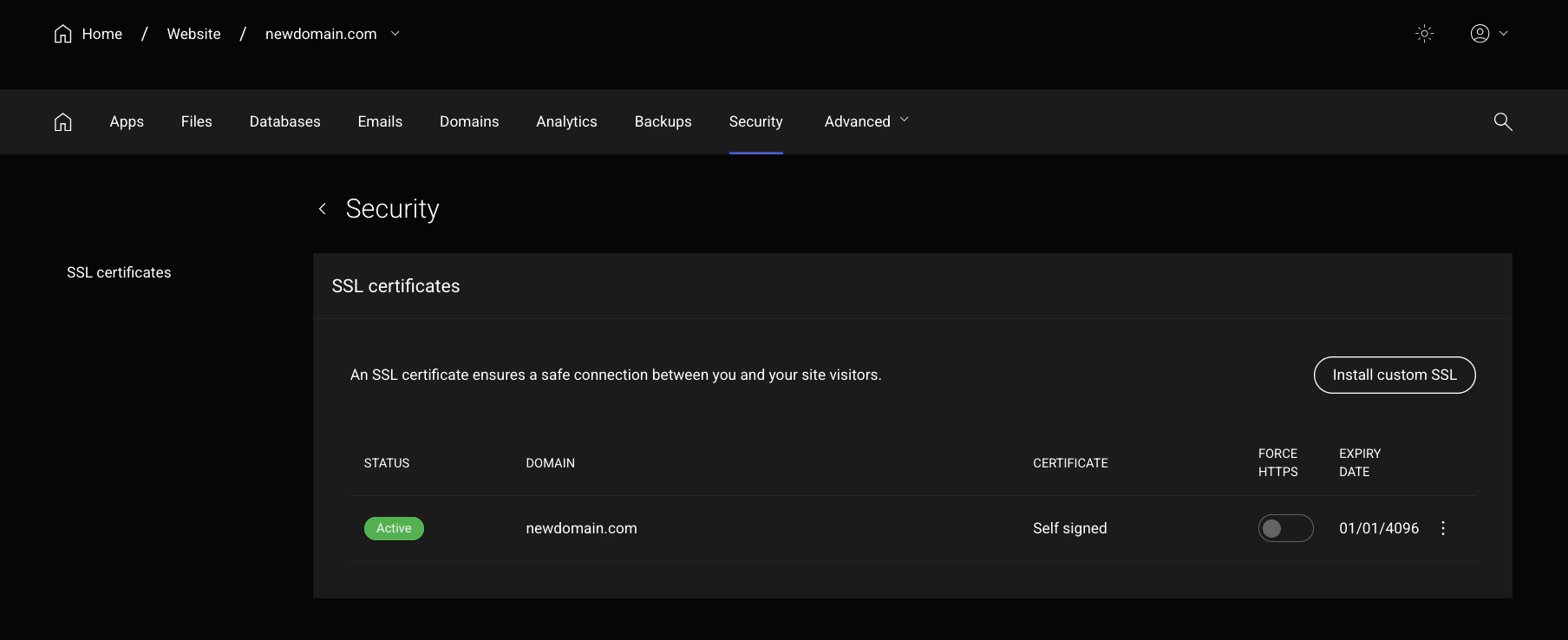
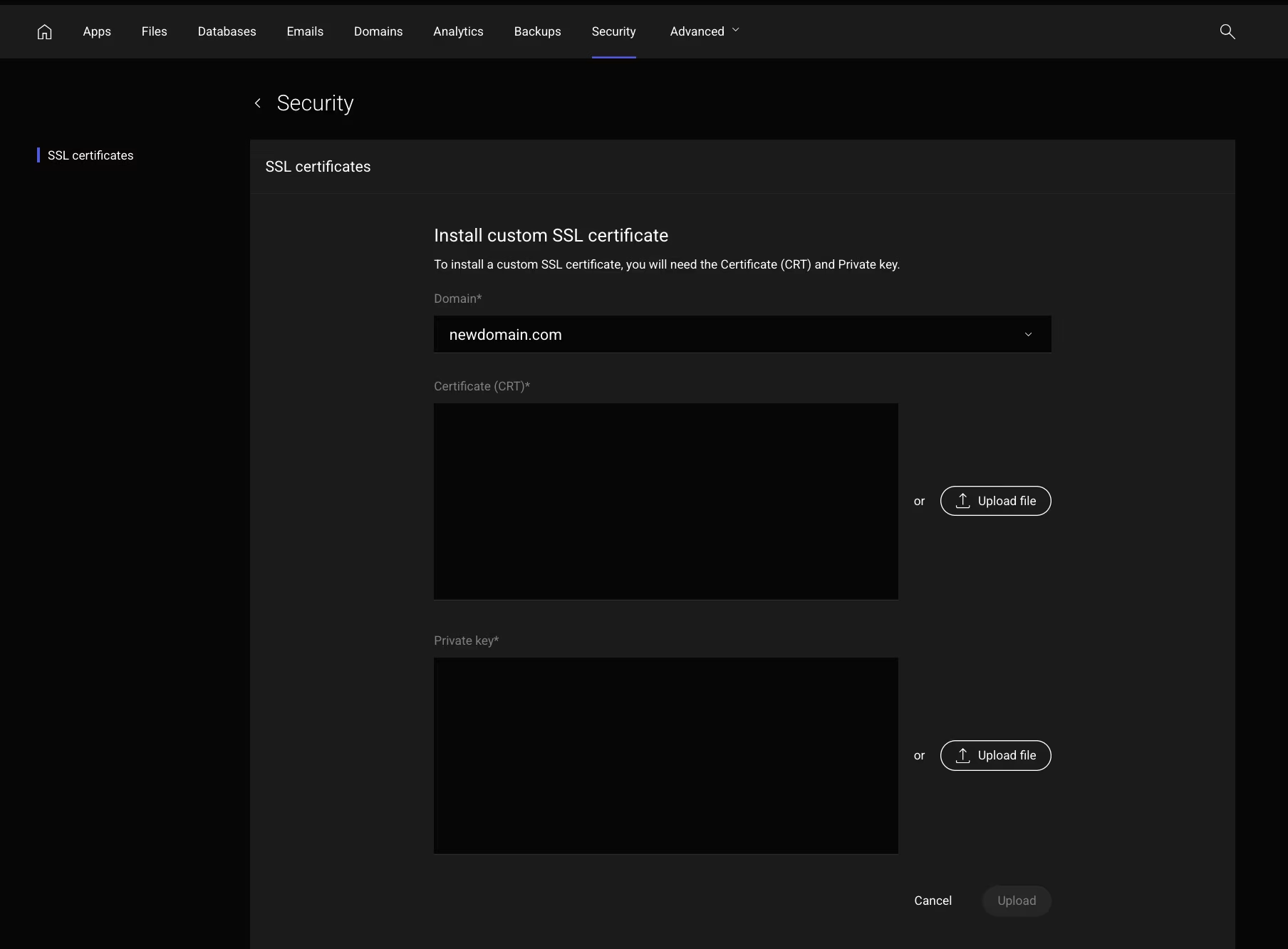
Click on the and follow the steps to upload CRT and Private Key File available with you.
Troubleshooting
A Let’s Encrypt certificate has not been issued If a Let’s Encrypt certificate has not automatically been issued to a website, please:
Check the DNS points to a server in your cluster.
If the website is a staging domain or a subdomain, ensure the parent domain resolves.
If you have completed the troubleshooting steps and the issue persists please raise a ticket with support@popacloudhost.com for further assistance.