How to Access WordPress Admin Dashboard
Estimated reading: 6 minutes
Starting a new WordPress website is exciting, yet it requires certain prerequisites. One of the first steps is to install WordPress on your domain. Next, you need to start creating your website. In this article, our goal is to explain the different approaches for gaining access to your WordPress admin page. Furthermore, we’ll offer practical tips for situations where locating the admin page becomes challenging.
What are the default WordPress Admin Login URLs?
Upon completing the WordPress installation, you will be furnished with the login URL for your site. Yet, if you happen to overlook this information, fret not! There’s an alternative option—make use of the default WordPress admin login URLs:
www.websiteamen.com/wp-admin
www.websitename.com/admin
www.websitename.com/login
www.websitename.com/wp-login.php
Note
Replace “websitename.com” with your actual Website name. All of these URLs will direct you to the same login page for your WordPress Control Panel.
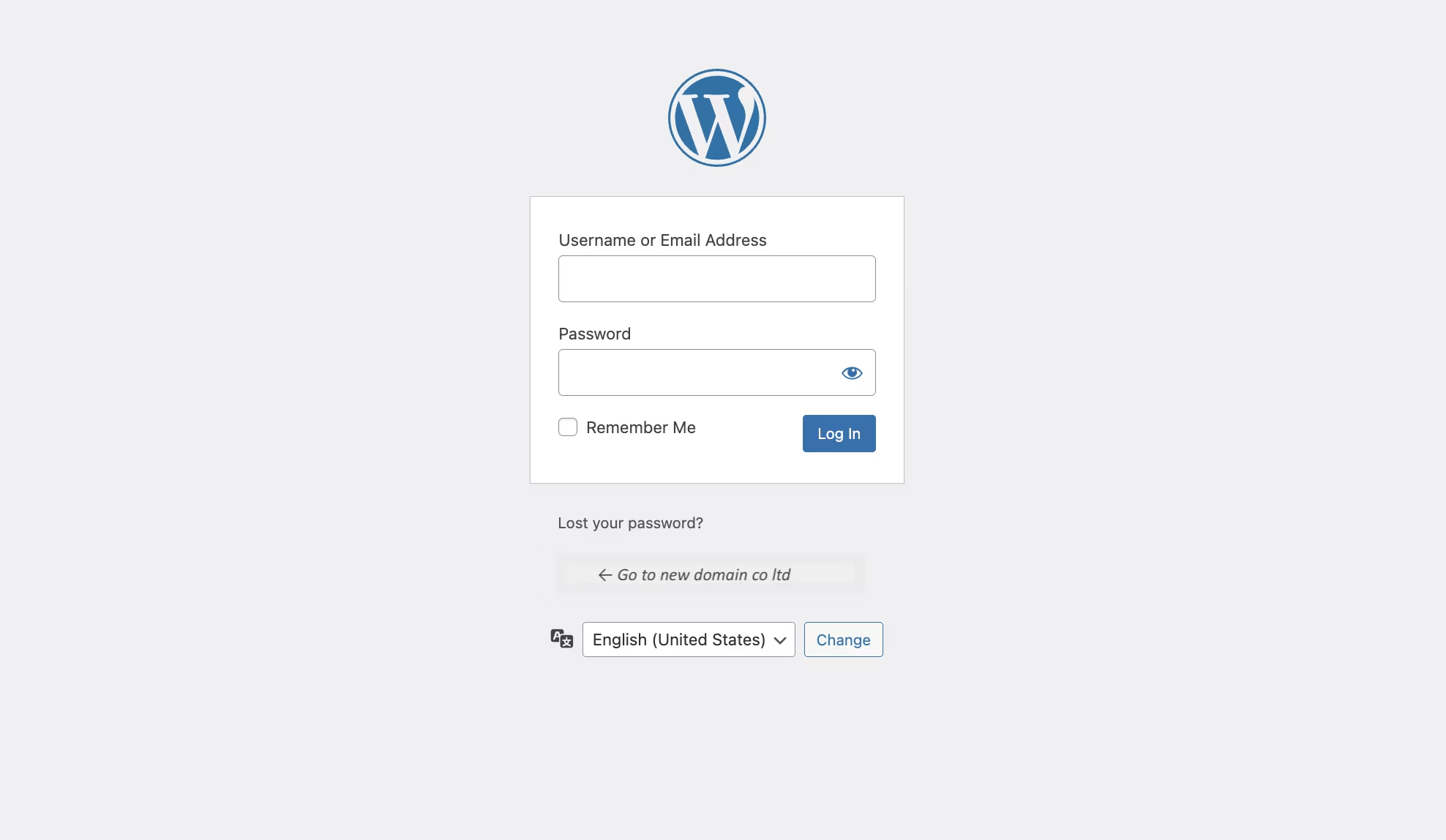
At the login page, you need to enter your WordPress username and password which you have set during the installation process.
For WordPress installed on a Subdomain
If your WordPress site is set on a subdomain, your login URL will look like this:
us.in.websitename.com/wp-admin
au.in.websitename.com/wp-login.php
For WordPress installed in a Subdirectory
If your WordPress installation resides in a subdirectory, it’s essential to incorporate its name in the URL. For instance, if your site is configured as example.com/wordpress/, then the corresponding login URL would be:
www.example.com/wordpress/login/
www.example.com/wordpress/wp-admin
Irrespective of the installation location of your WordPress, you have the option to bookmark your login URL. Naturally, there are alternative methods to access your Dashboard. Keep reading to discover more about them.
Use the “Remember me” option
Activating the “Remember me” option on the WordPress login page is a valuable feature. By selecting it, you ensure that your login session persists for an extended period, depending on your browser’s cookie settings.
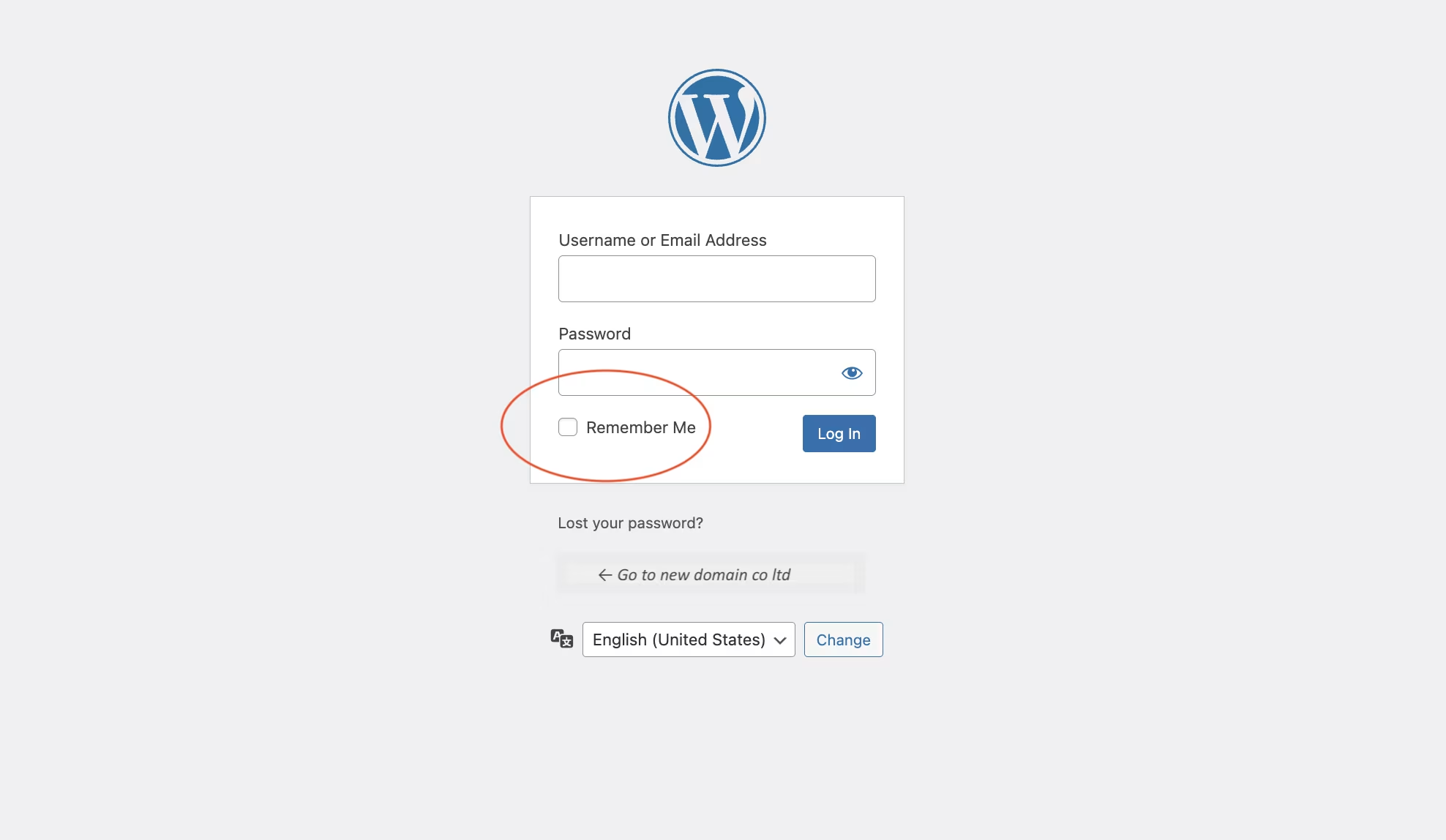
Add a Login link to your WordPress Website
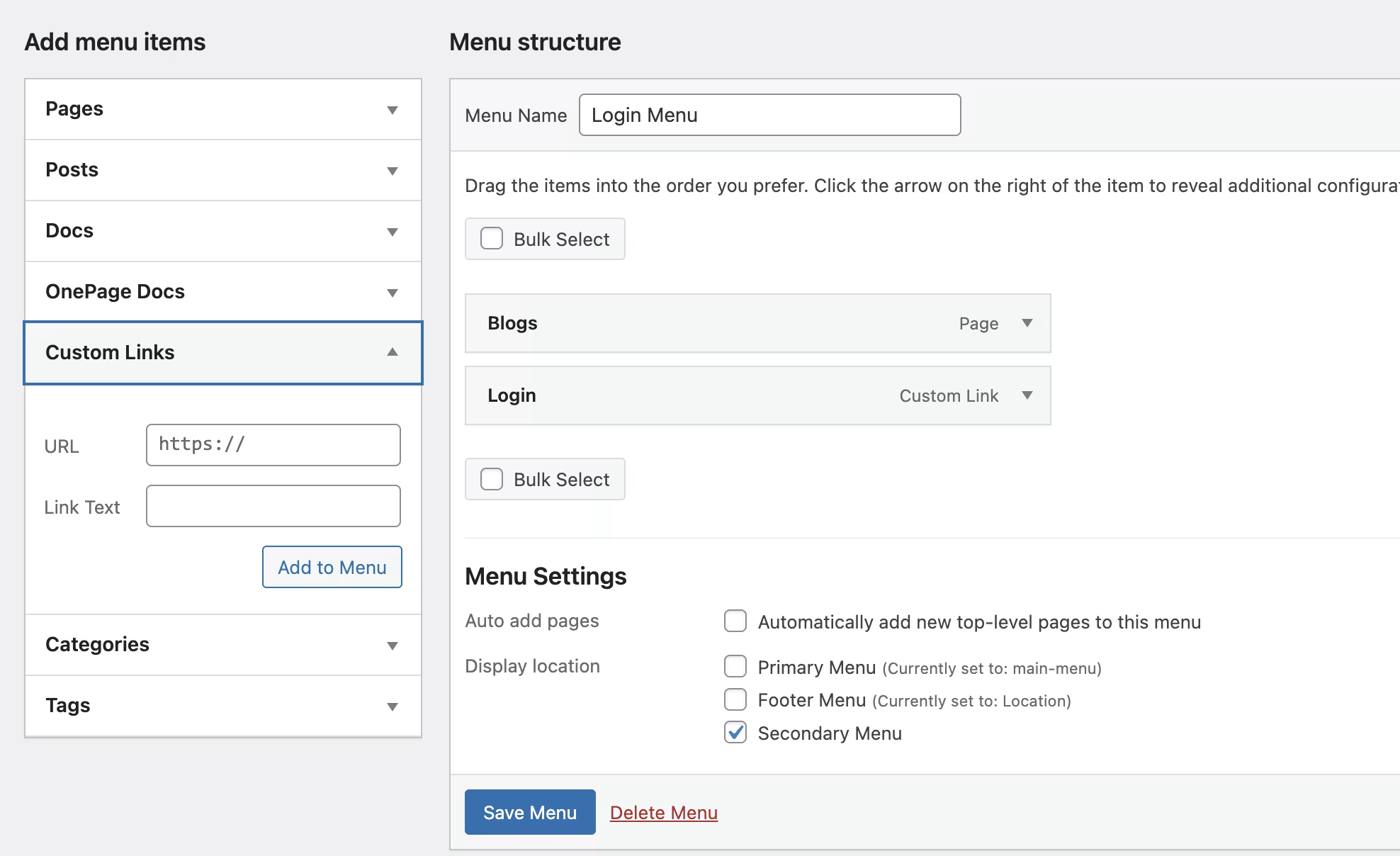
If you find it challenging to recall your login URL, consider adding a login link to your site. This link can be incorporated into your sidebar, footer, or menu for easy access. To add your login link to your site’s menu, navigate to :
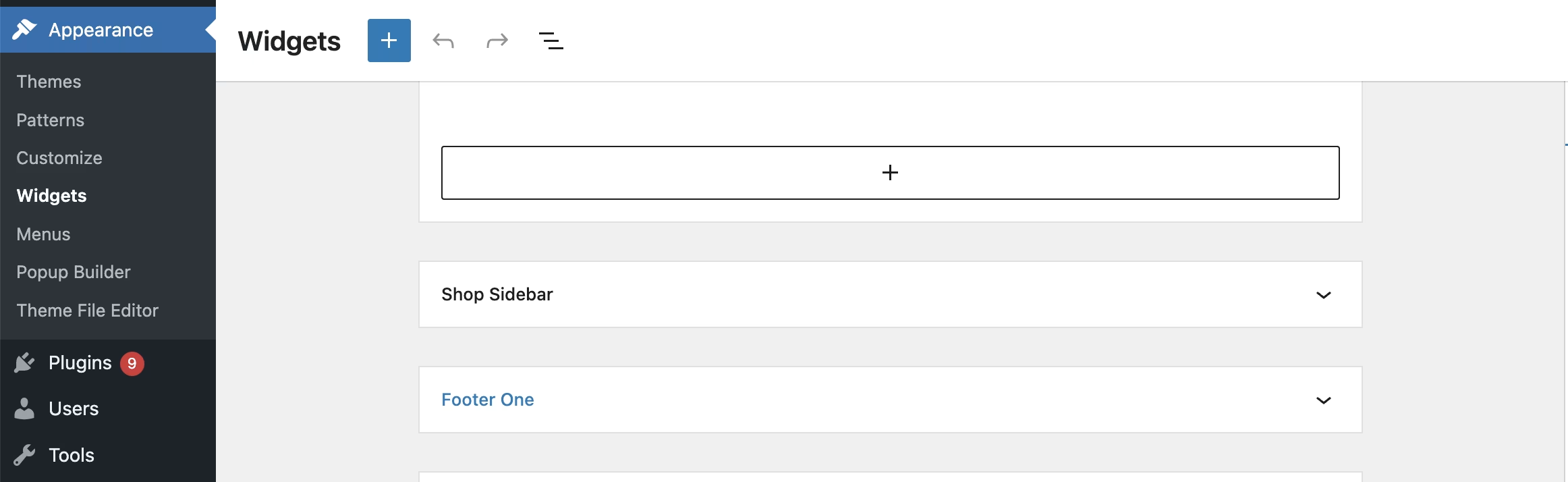
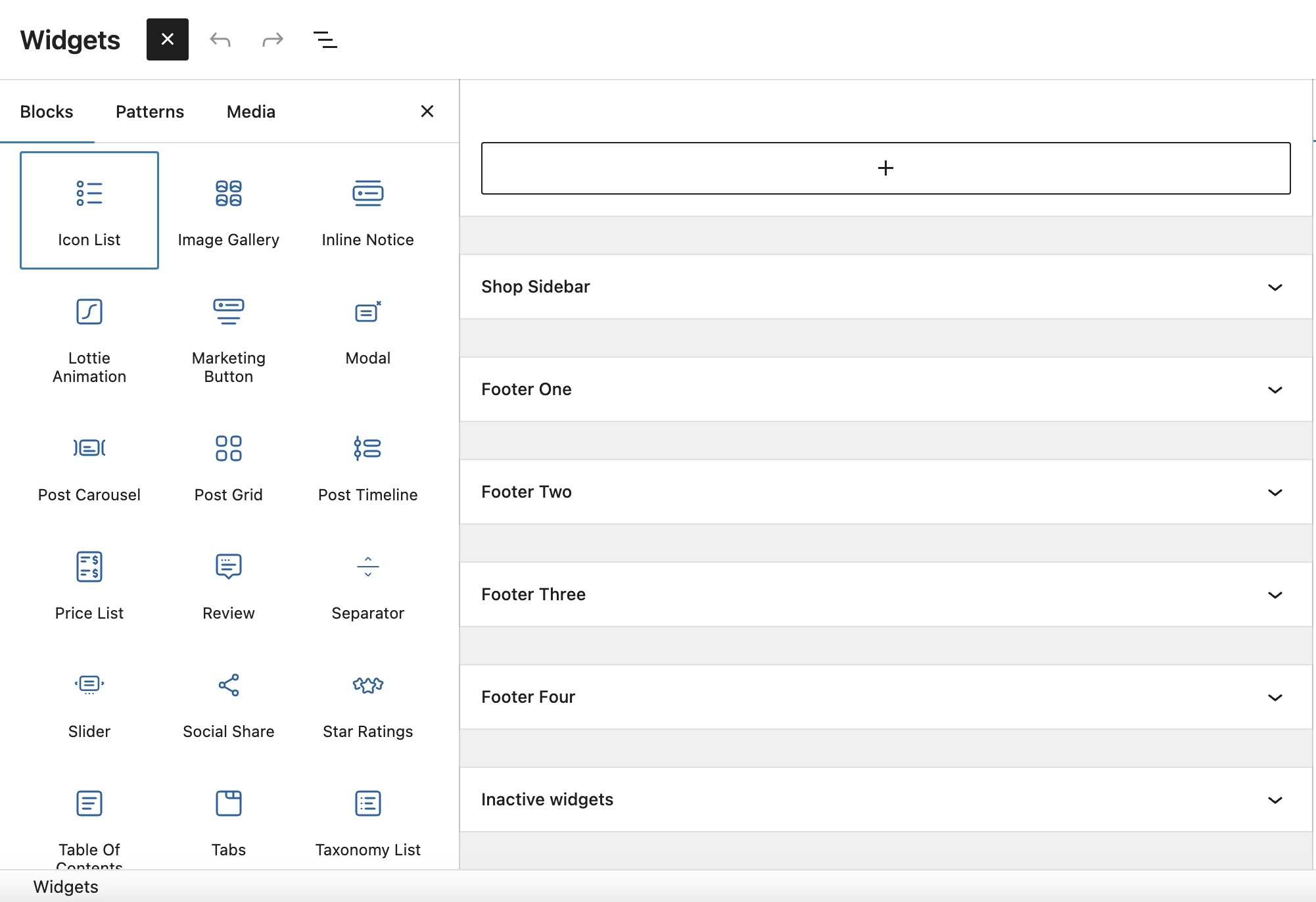
Another option is to use the Meta widget to add a login link to your site’s footer. To do this, you need to go to and click the “+” sign in the upper-left corner. Afterward, simply drag the Meta widget to the Footer or Sidebar.
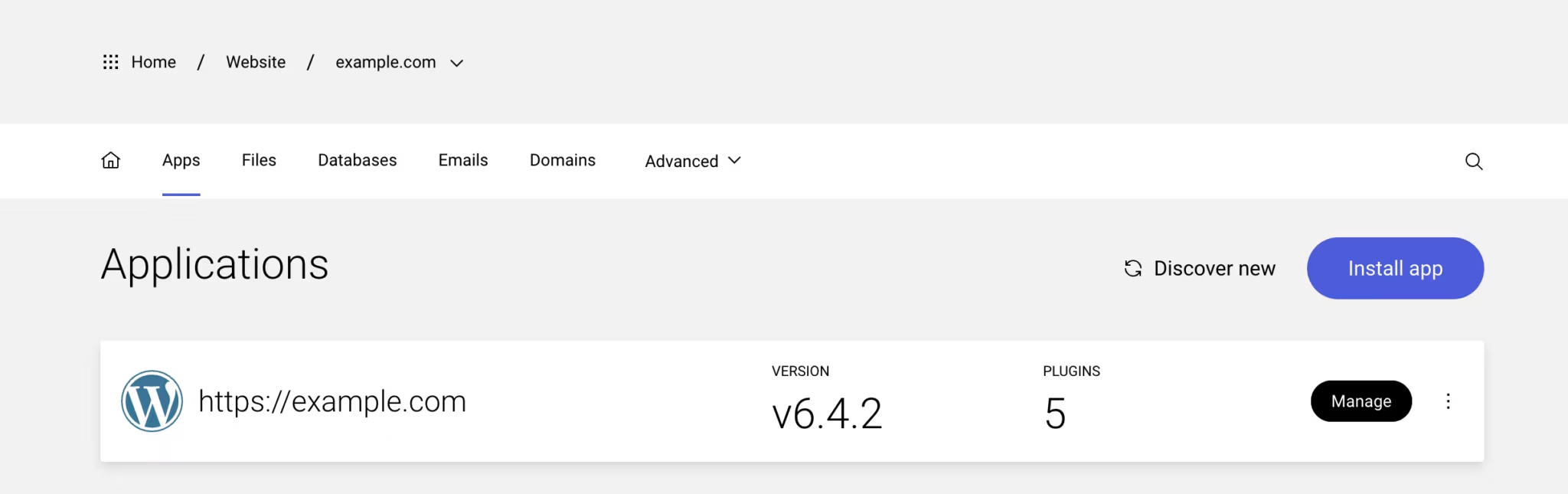
WordPress Admin SSO Login For PopaCloudHost Users
Log in to your WordPress Admin from your PopaCloudHost Website Control Panel.
Use the Auto Login feature to log in to your Admin Panel easily, and navigate to the Client Home Area.
How to Secure Your WordPress Login Page?
Use a strong password
Hackers try different combos of letters, numbers, and symbols to guess your password. A rule of thumb is to always set strong passwords.
Scroll down to “Users” section and Reset your password by clicking on the Key icon.
Configure CAPTCHA
Registration
Reset password
Login
Comment
New password
Frequently, WordPress login and registration pages become targets for hackers. Therefore, incorporating CAPTCHA into your forms serves as a protective measure, effectively safeguarding your site from spambots and potential hacking attempts.
Add 2-Factor Authentication
This enhancement forces the site’s admin to require a token before granting access to the WordPress dashboard.
Note
Adding 2-factor authentication will hinder the Autologin ( SSO ) feature.
How to Troubleshoot Issues With Your WordPress Login?
Update your WordPress Admin password
As frustrating as it may be, sometimes you may forget your WordPress admin password. Here are several ways to help you change it:
Change your password from the WordPress login screen
WordPress has a built-in feature called Lost your password?. You can see it on your WordPress Admin login screen.
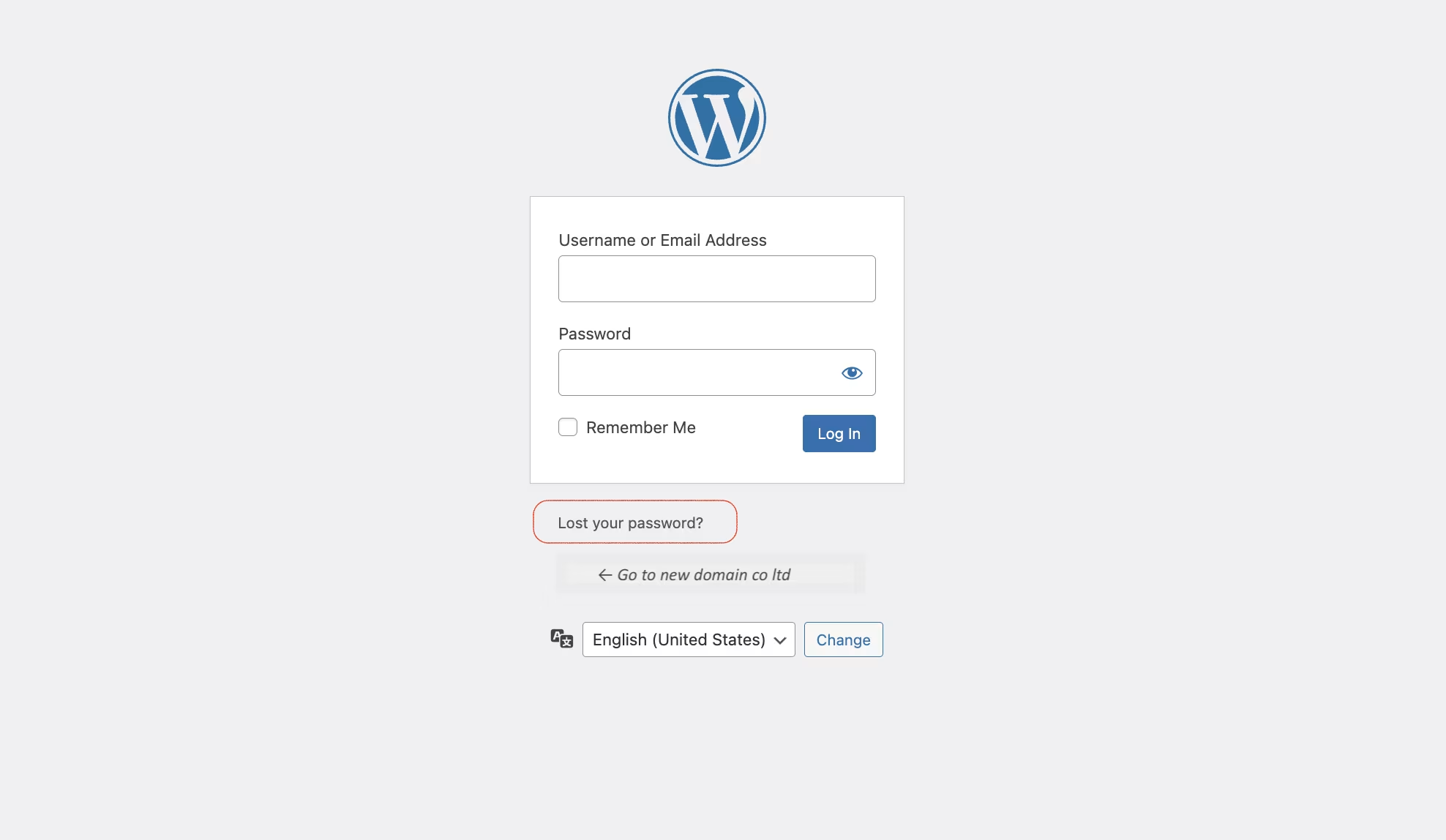
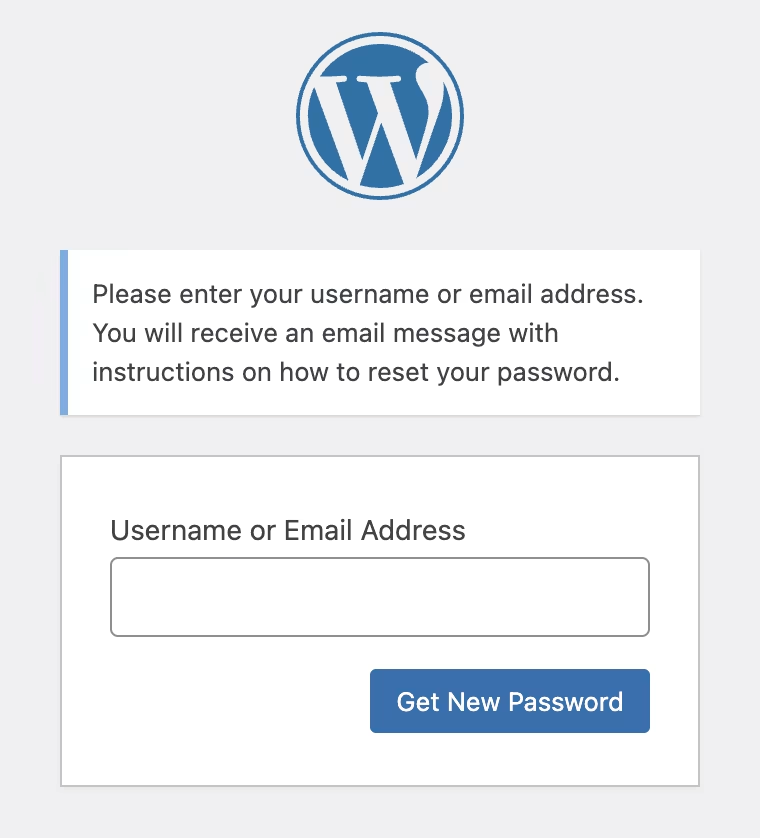
Select the appropriate link and enter your WordPress admin email address.
Update your admin password from Website Tools from the Control Panel.
Change your WordPress password via PHPMyAdmin
You can access it from .
Select your database and click on .
wp_users table. Within this table, you’ll find a list of all users for your WordPress site.user_pass to MD5. Subsequently, update the Value for user_pass with your preferred new password.Then simply click the button. Your new admin password is now all set.
Reset your WordPress password using WP-CLI
If you are proficient with SSH, you can use WP-CLI to reset your password. | When in the root folder for your WordPress, use the following command to find your user ID:
$ wp user list
WP-CLI will output a list with your users and the ID of each user. Having the ID for your user, you can change your password with this command:
$ wp user update id --user_pass=password
Note
You will need to replace id with the number of your user ID. Also, replace password with the actual password you wish to use.
Deactivate plugins
Frequently, a malfunctioning plugin can disrupt your WordPress admin login, possibly due to conflicting plugins. In such cases, consider resolving the issue by disabling your plugins to identify and address any conflicts.
Since you are having a WordPress login issue, you will not be able to deactivate your plugins from the WordPress Dashboard. Therefore, you can easily disable your plugins from Control Panel . Go scroll down to .