Install WordPress & WooCommerce on Your Website
Estimated reading: 5 minutes
Launching your online store has never been easier, thanks to WordPress and WooCommerce. Whether you’re a small business, a startup, or a large enterprise, this powerful combination gives you full control over your eCommerce website. In this complete guide, we’ll walk you through how to install WordPress and WooCommerce on PopaCloudHost, your secure, scalable cloud hosting provider.
Introduction to WordPress and WooCommerce
WordPress is the world’s most popular content management system (CMS), powering over 40% of websites globally. WooCommerce is an open-source WordPress plugin that transforms your site into a fully-functional online store. Together, they offer:
Complete control over design and features
Wide plugin and theme ecosystem
Cost-effective eCommerce capabilities
SEO-friendly structure
Prerequisites Before You Begin
Before starting the installation, make sure you have the following:
A domain name (e.g., yourbrand.com)
A PopaCloudHost web hosting account
Access to Control Panel or server terminal (for advanced users)
Basic knowledge of web hosting (or use 1-click installers)
Access Your Hosting Control Panel
Follow the below instructions to Install WordPress with your Web Hosting plan , you can do it in few different ways.
Option A: Use Control Panel (Recommended for Beginners)
Log in to your PopaCloudHost Control Panel
Navigate to your hosting product Click on Access Web Control Panel
In the Control Panel interface, scroll down and click on .
Click on the Button, Now You will see three Different options here
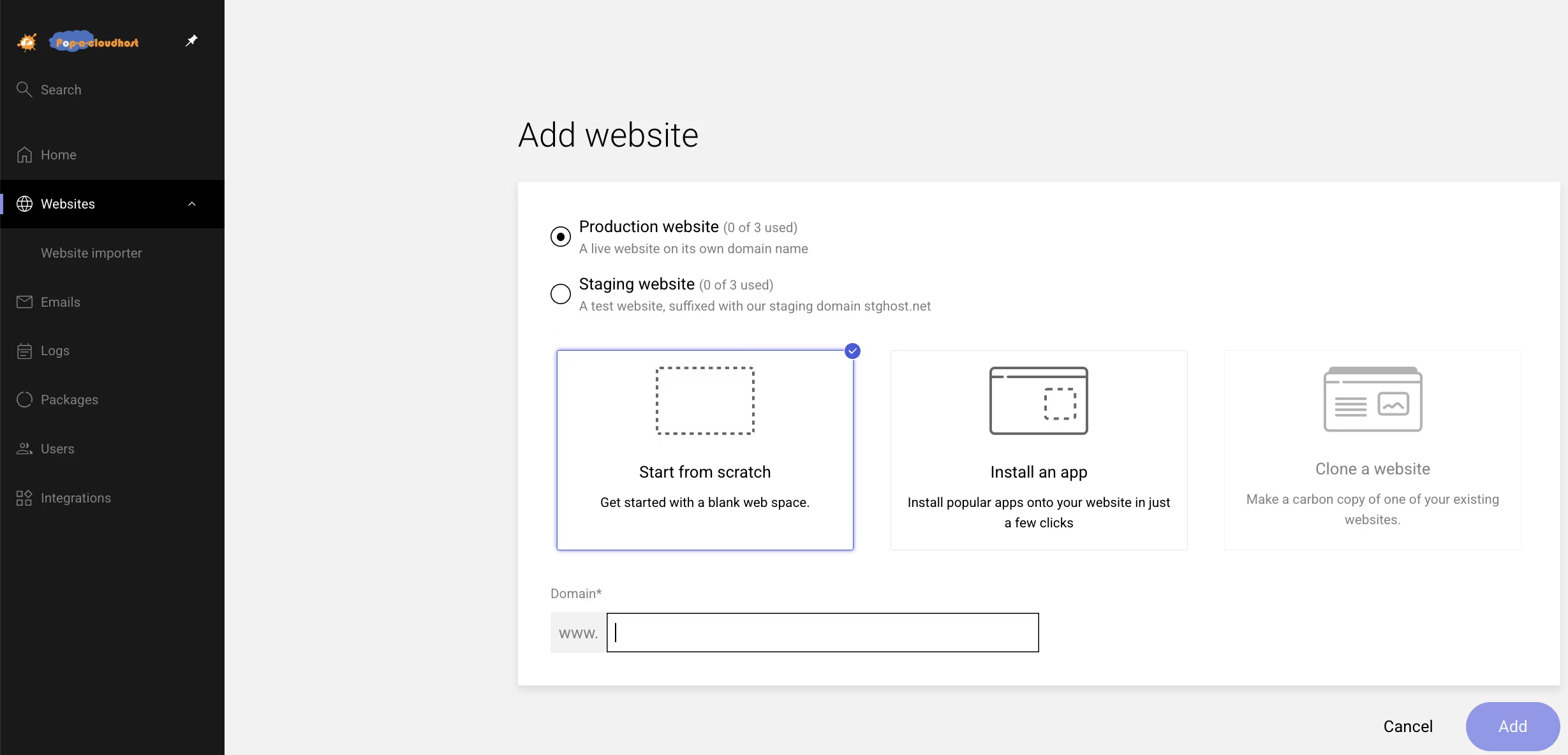
Select Option
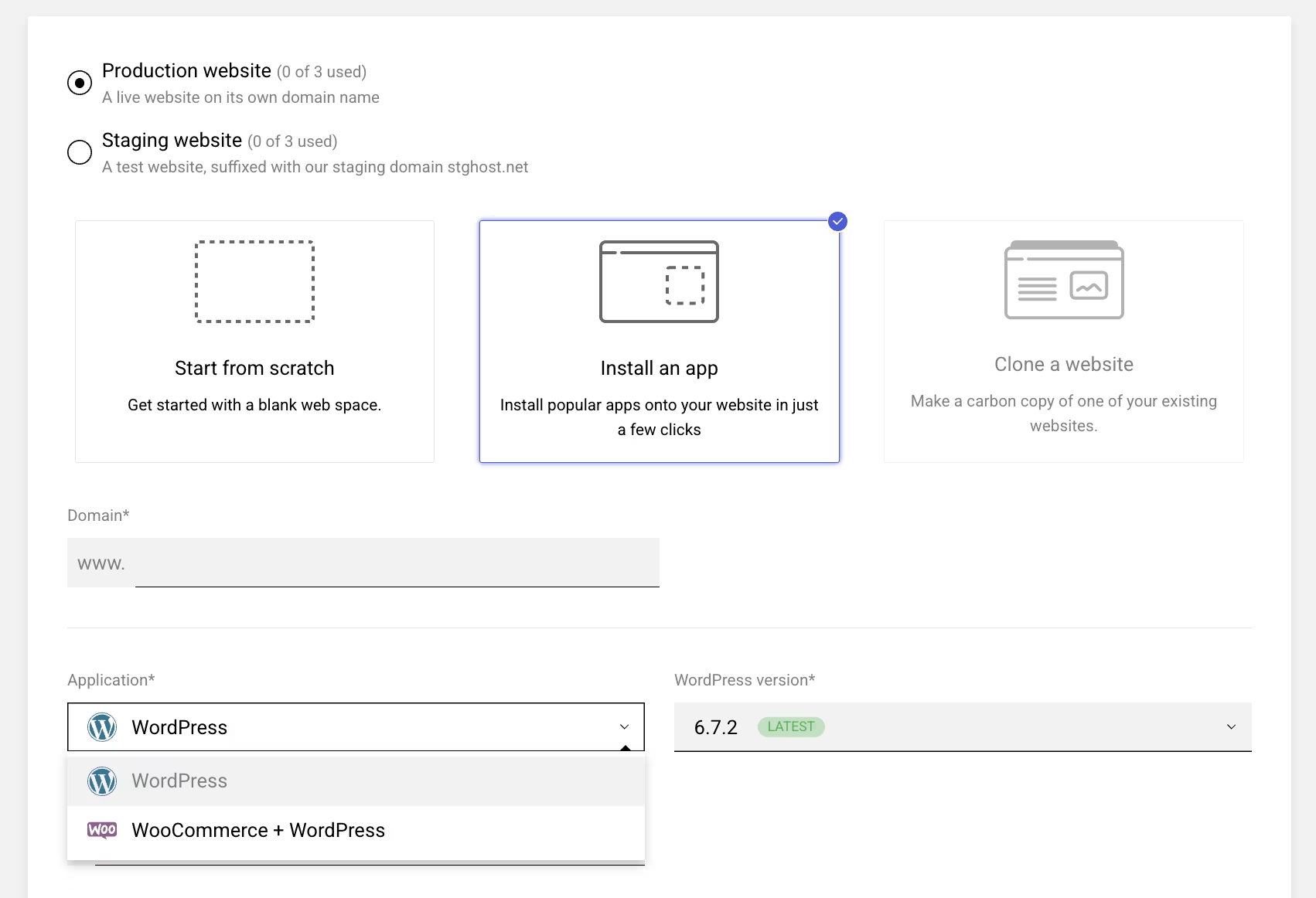
Type the
Domain Nameyou already registered .Select WordPress or combo WooCommerce option, choose desired WordPress version .
Complete rest of the admin user details and Click button.
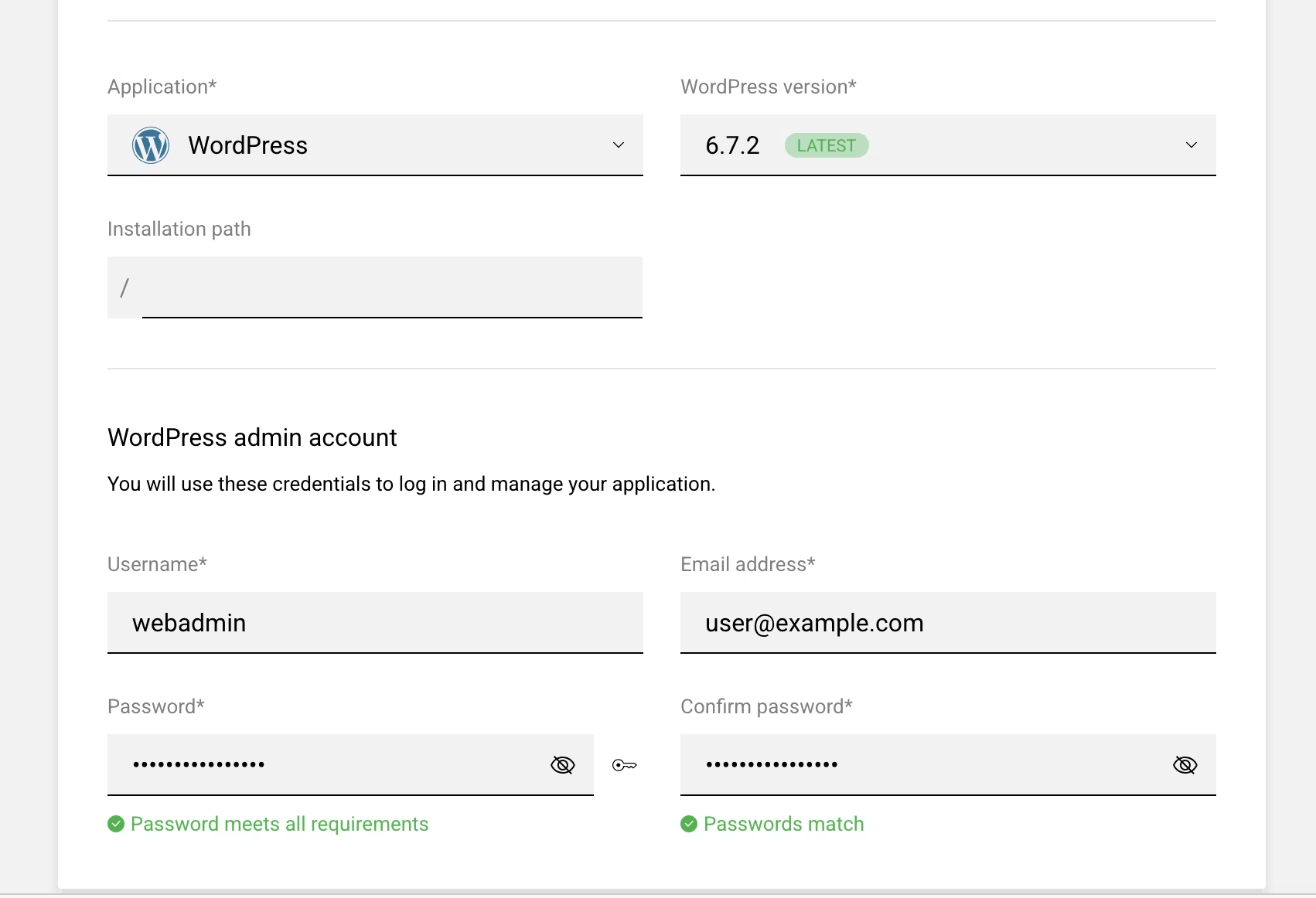
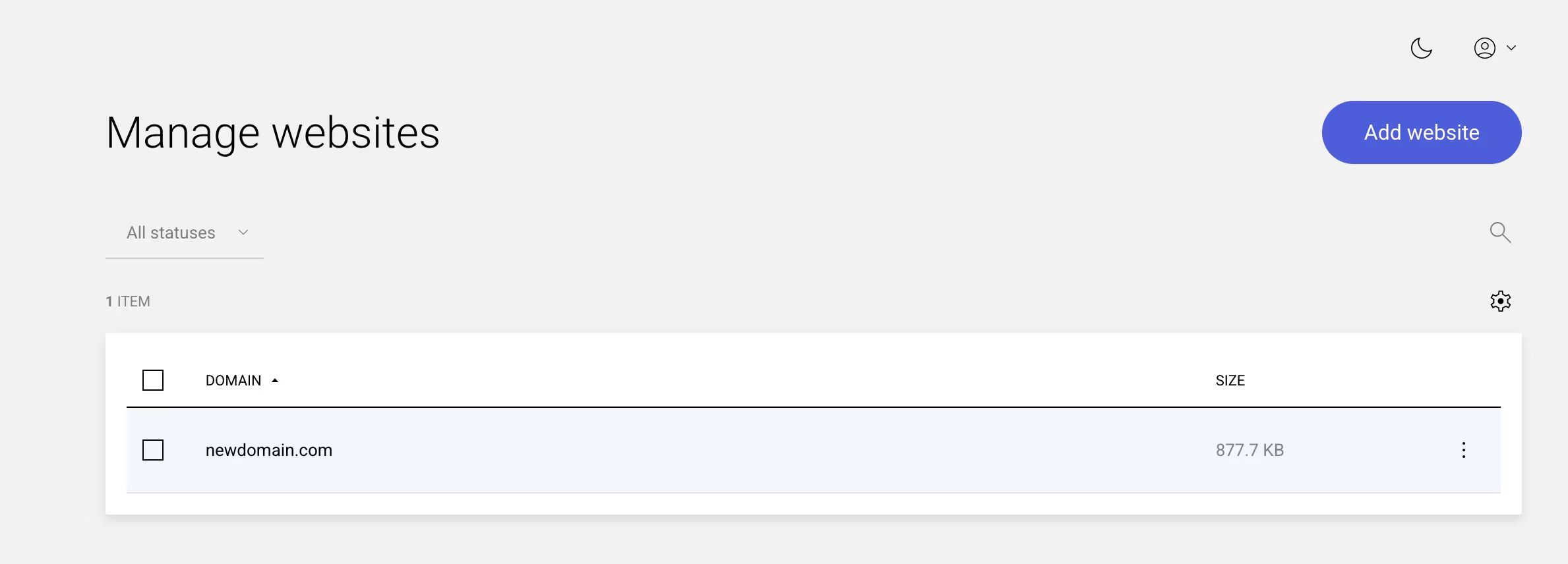
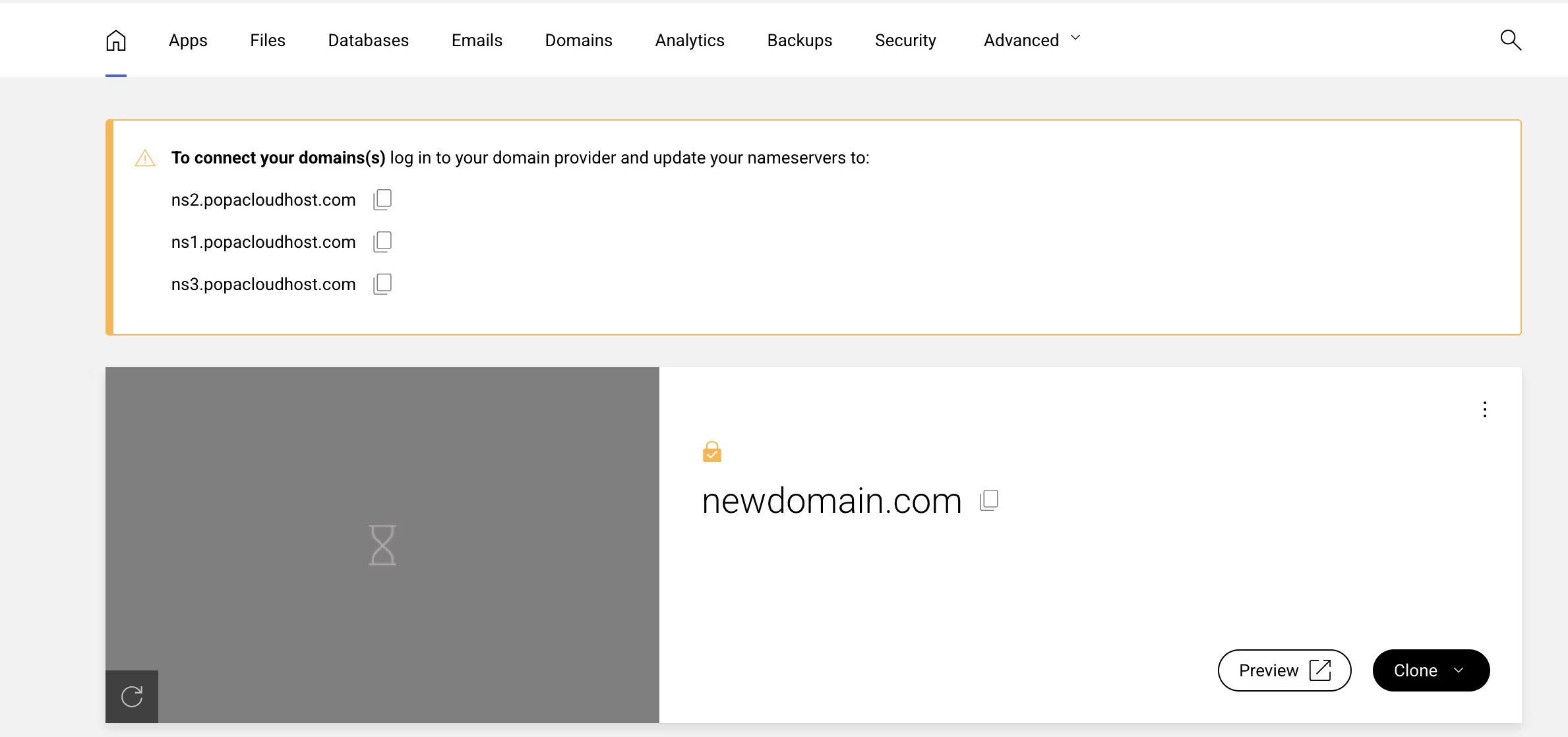
And that’s it , Your Website is ready to be setup.
Option B: Install Manually (For Developers)
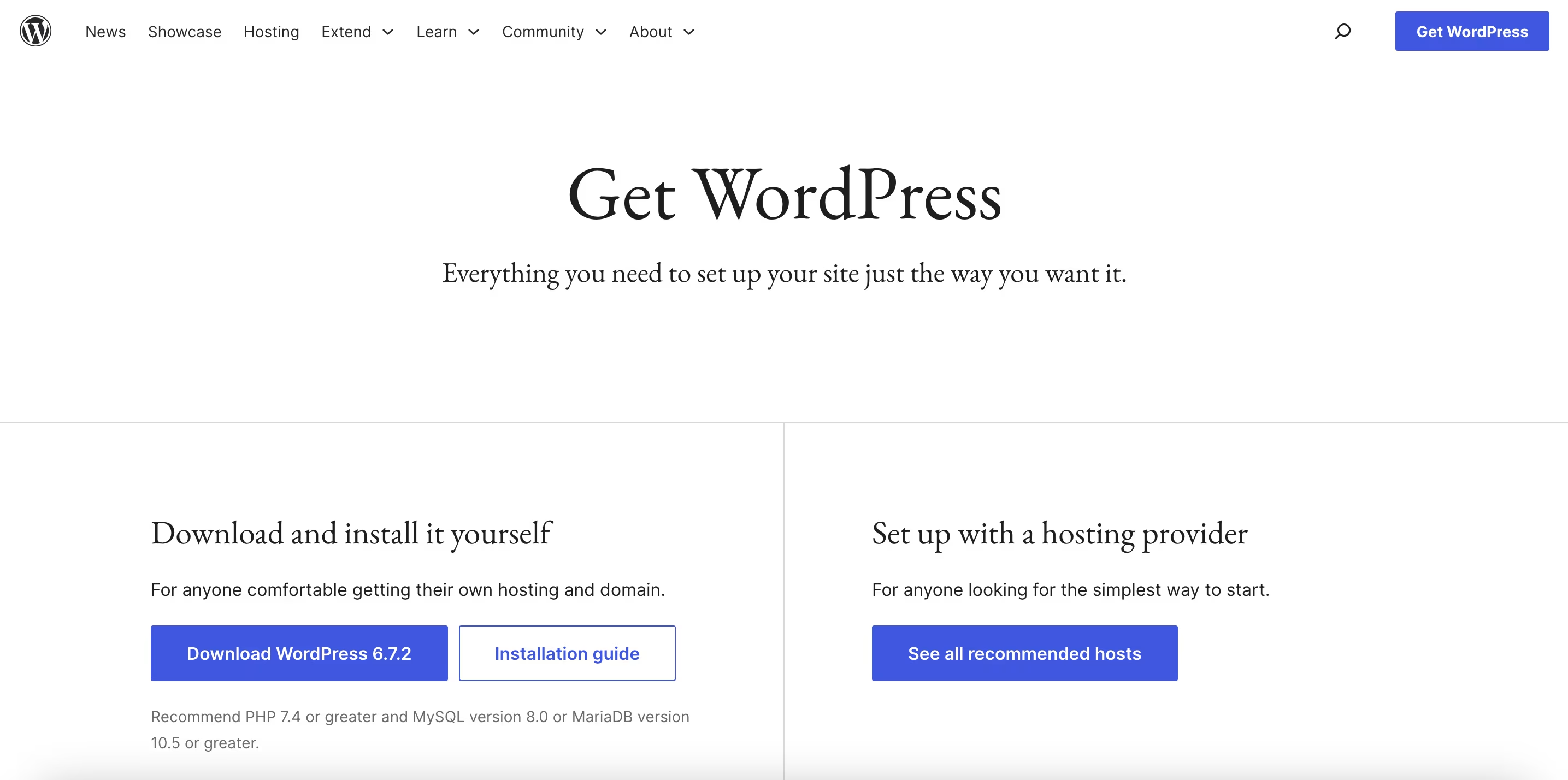
Download the Latest Stable Version of WordPress Software on your computer from Wordpress.org
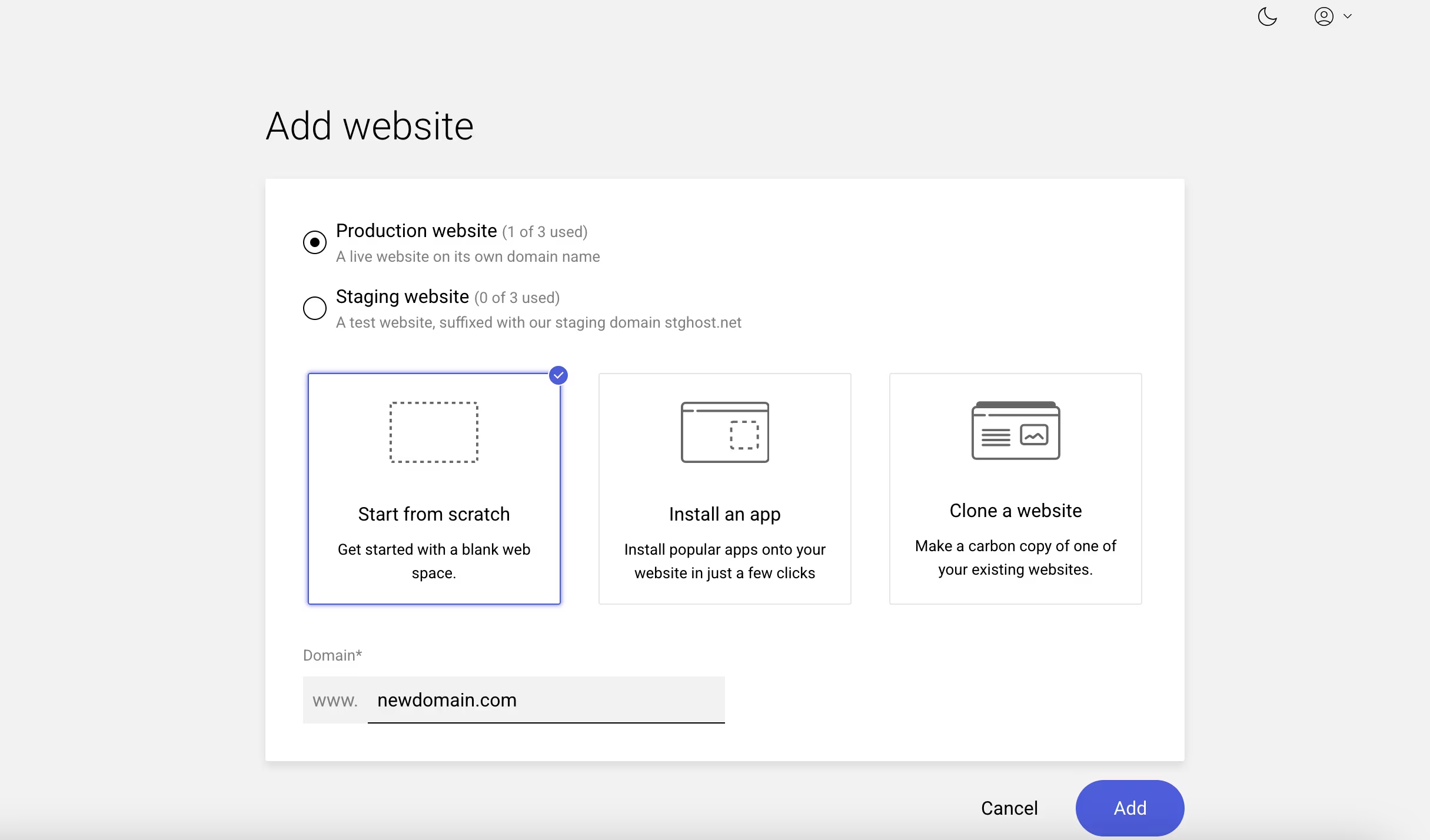
Create an Empty Website by Selecting Option.
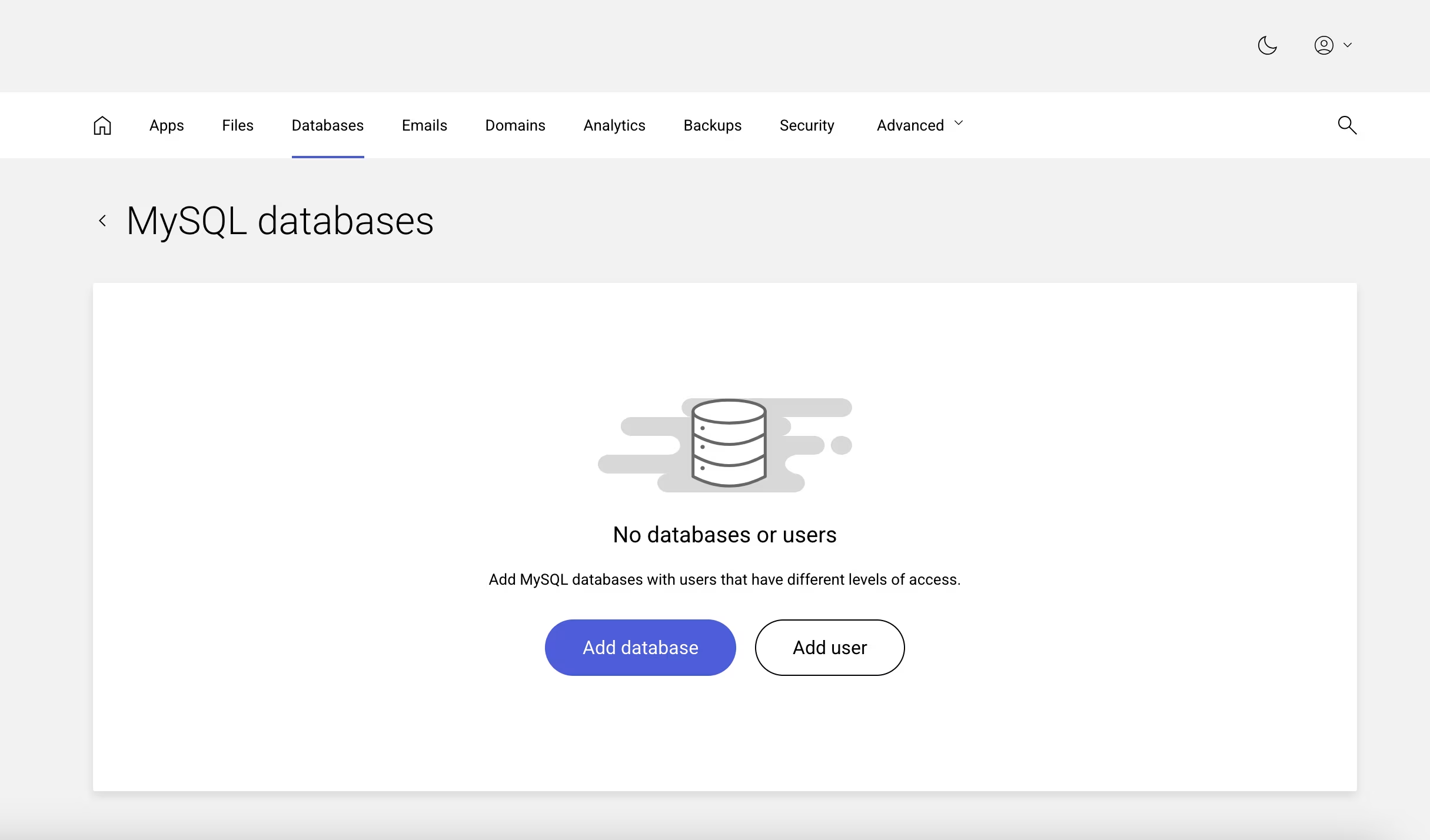
Now navigate to and create a database and user for WordPress , you can opt for Mysql or MariaDB.
Extract WordPress Downloaded from wordpress.org on your local computer and upload it using on Control Panel. However its recommended to use SSH OR FTP Account for fast and reliable huge uploads.
Remember you need to upload whole extract in
public_htmlfolder or you can create subfolder if you wish to run part of your website in WordPress eg.public_html/blogs(Optional) Find and rename
wp-config-sample.phptowp-config.php, then edit the file and add your database information. ( Skip this step for Standard Installation.)Now Start the Standard Wordpress Installation Process by simply browsing your domain. eg http://newdomain.com or if you have uploaded it in a subfolder then browse the relevant path eg. http://newdomain.com/blogs.
Note
For more detailed information visit wordpress.org documentation. https://developer.wordpress.org/advanced-administration/before-install/howto-install/
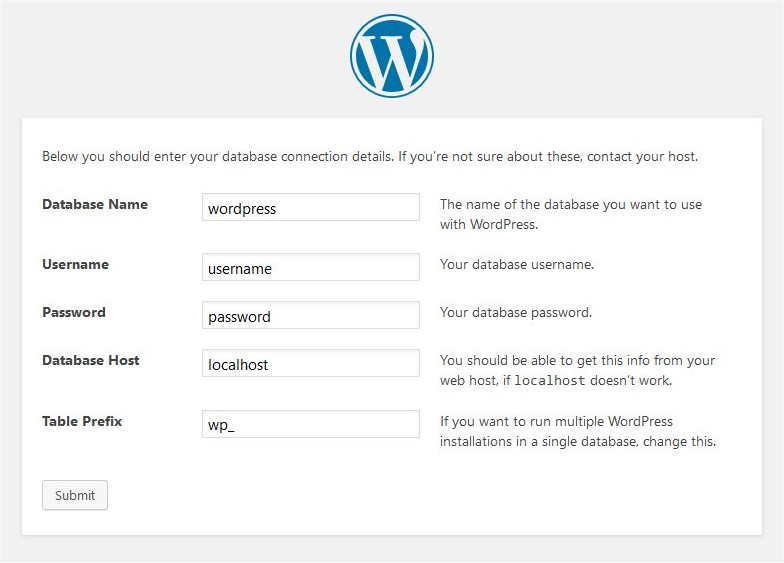
Click
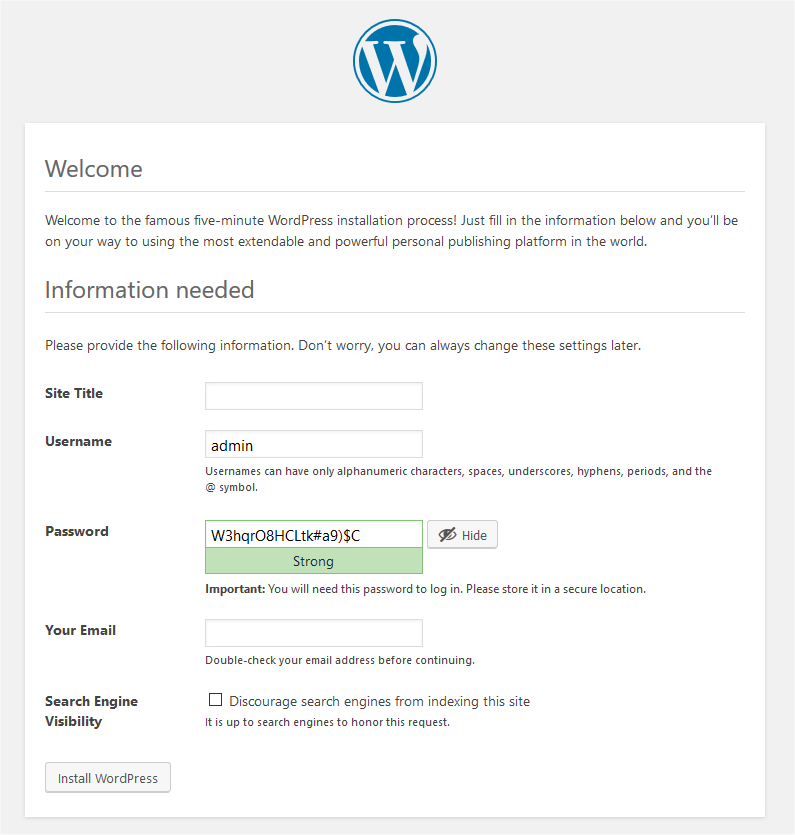
Click , After successful installation you will see WordPress login prompt.